
Step 1.
Paste CMS TOC Kit into your Detailed page (on the right side of this page).
Step 2.
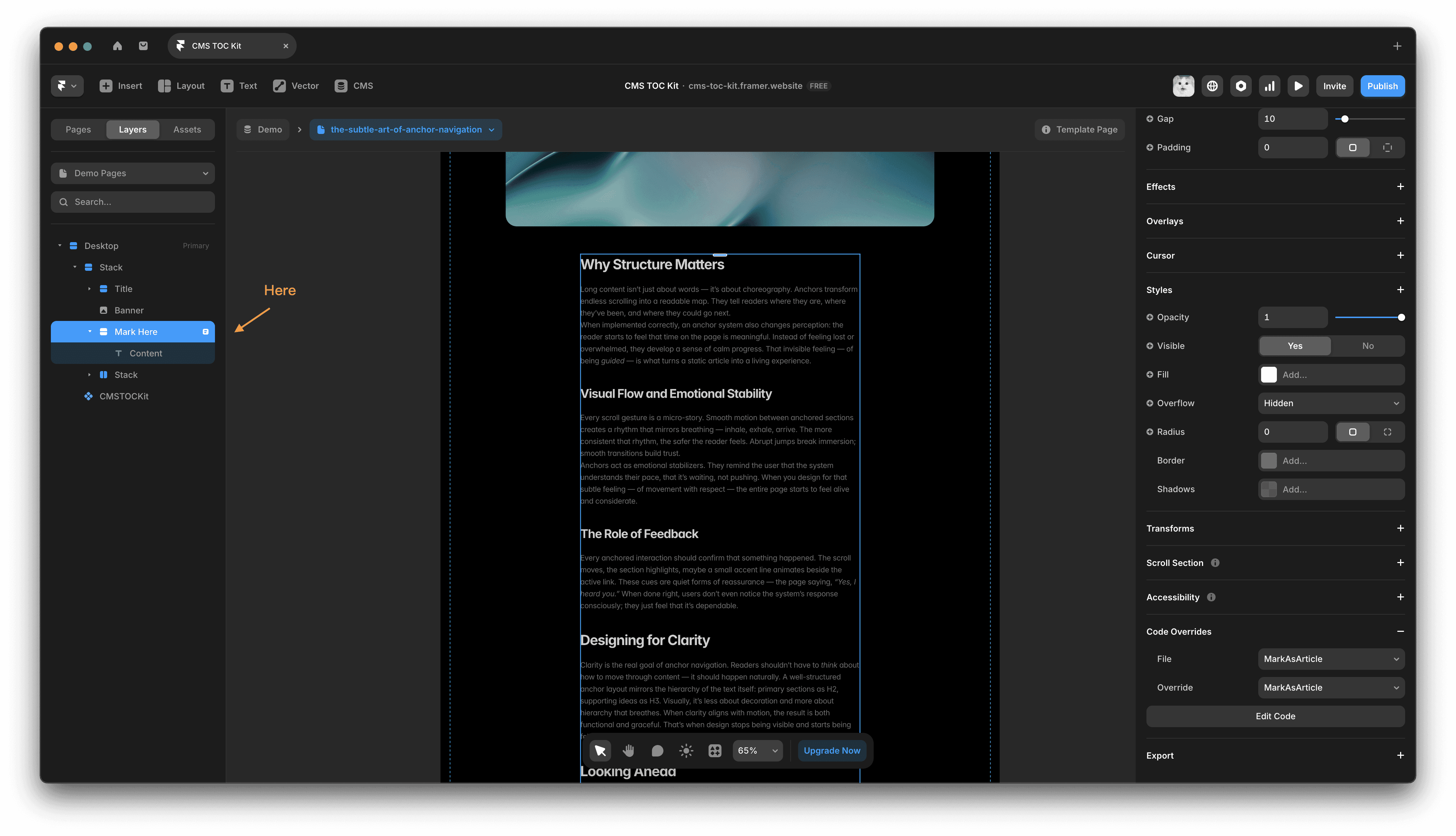
Select the Rich Text block (it’s usually named "Content" in the Layers panel), then wrap it with a Frame to make sure Layout is enabled.
Step 3.
On this Frame (I named it "Mark Here" in this example), paste the key override below.
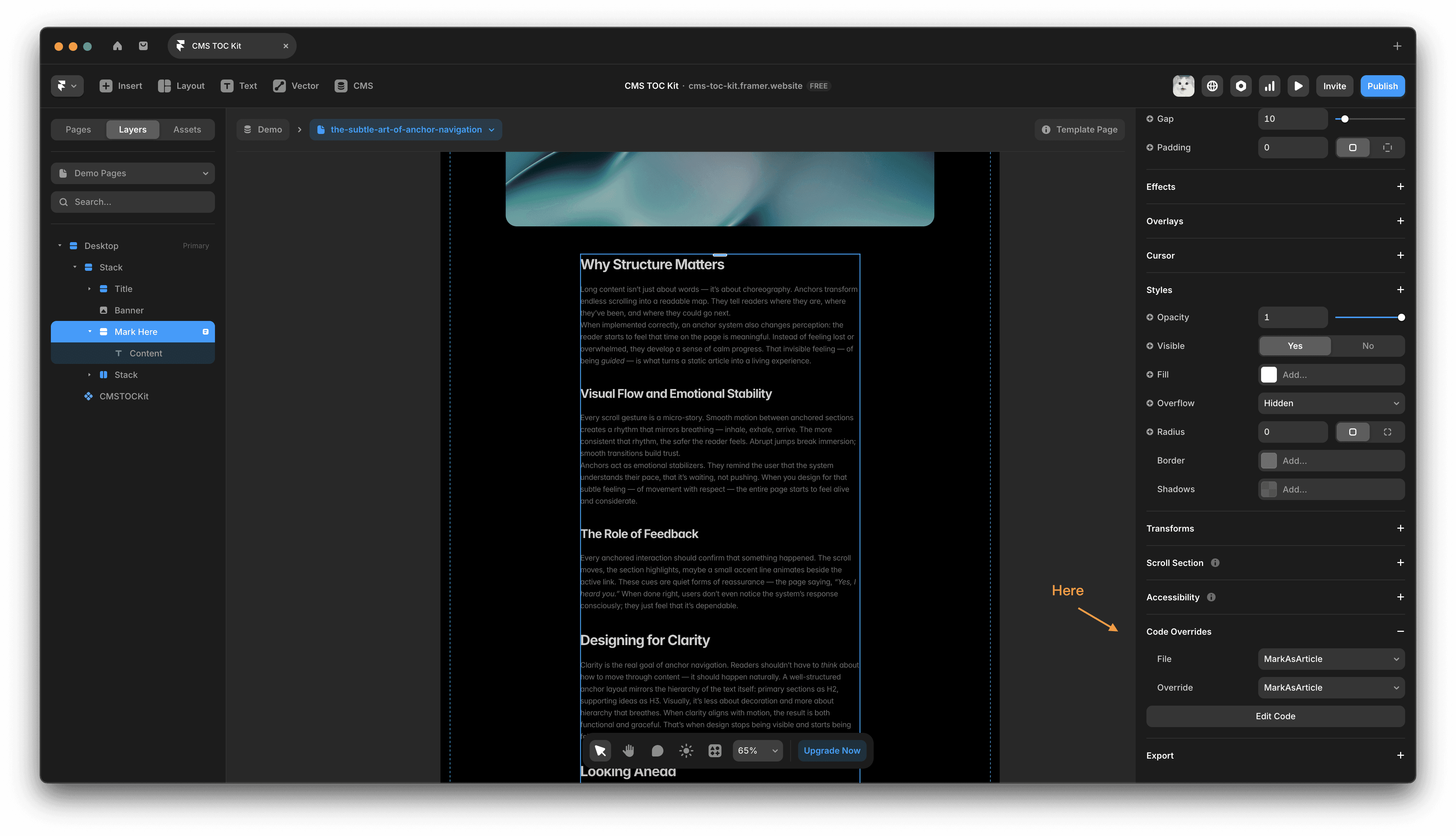
Also make sure both the File and Override fields are set to MarkAsArticle. This tells CMS TOC Kit which section to scan for Heading tags.
Step 4.
Done! Your CMS TOC Kit will now display the page headings and provide in-page navigation. You can fine-tune the details from the right-side panel.
If anything is unclear, feel free to email me at mollys1925@gmail.com — I’ll be happy to help with further guidance.